Configure
Application Instances.
Industrial Data Collector is designed to allow running its multiple instances in the same or different machines, with ability to share most of configuration settings (such as settings to connect to time-series database) between instances.
When instance of the application starts first time, it generates unique identifier (GUID) for itself, and saves this identifier among with other settings in the configuration file with name composed by adding instance.json after main configuration file name. By default that will be ./data/config.json.instance.json.
Then the instance identifier is used to create subfolder for log files and PKI folder. In configuration fields that define folder or file name, the placeholder [InstanceId] can be used. At runtime it is replaced by actual instance identifier.
Configuration settings: Introduction
The application looks for configuration settings in a few locations.
Configuration files
Basic configuration file. Defaut location is
./data/config.json, can be changed by passing file name as argument at startup.If configuration file in the expected location cannot be found, then it is created with default settings.
The application monitors changes in the configuration file and can pick-up and apply most of the changes at runtime. So potentially this file can be modified by external tools (see the section Configure the application using Basic Configuration file. for details).
Additionally to this, a file with more detailed settings is created, with the name as for the the basic configuration file, postfixed by
.instance.json.
Configuration database. Can be either SQLite (default) or PostgreSQL database. Settings are stored there by the application backend. Configuration tables are created automatically. Potentially it is possible to change configuration settings, specially bulk settings (list of logged variables) by external tools. For example by importing of data from CSV files to the tables, as described in the section Import variables from CSV file. Or by inserting data into configuraton database tables as described in the section How to add OPC UA Server connection settings and logged variables using Python scripts.
Note
Main settings stored in the configuration database and in configuration files are synchronized at runtime bi-directionally. In case of importing data from CSV file or programmatically by Python scripts to apply changes restart of the application is required.
Environment variables.
Some settings can be passed via environment variables. They have highest priority, override settings defined in the configuration files or in the database. Read at the application start.
Environment variables are convenient to use when the application is deployed as a Docker container, or runs as a service using Service Manager (nssm).
OVL_CONFIG_FILE - name of the configuration file. Defula tvalue is
./data/config.jsonOVL_USER_ID - default user name with administrator rights. Default value is
admin.OVL_USER_PASSWORD - default password. Note this password is used only once, at the initial login. After the very first login it is forced to change.
OVL_PROTOCOL - protocol used by the configuration GUI web server. Possible values are
httpsandhttp(default value).OVL_PORT - port number used by the configuration GUI web server. Default value is 4880.
Settings to connect to the configuration database.
OVL_CONFIGDB_TYPE - type of the configuration database. Can be
SQLite(defult) orPostgreSQL.OVL_CONFIGDB_PATH - if database type is SQLite, then file name. If PostgreSQL, then database name.
Settings applicable only for the PostgreSQL type database:
OVL_CONFIGDB_HOST - host name of the PostgreSQL database.
OVL_CONFIGDB_PORT - port number, by default 5432.
OVL_CONFIGDB_USERNAME - user name.
OVL_CONFIGDB_PWD - password.
Environment variables that control user authentication and authorization described in this section: User Authentication Variables.
Configuration web GUI
Using Web GUI is recommended way to configure the application. In this case settings are validated and stored consistently.
The Web GUI frontend communicates with the backend via REST API. Therefore, potentially it is possible to configure the application programmatically over REST API too. But currently there is no piblicly available description of the API. Please contact Support if you are interested on configuring of the application over REST API.
Configuration steps.
This section covers all topics except configiration of data collection settings, which are covered in the section Collect.
Tip
Watch this quick start video demonstrating major deployment and configuration steps: https://youtu.be/QGZ3LrwR5ls?si=QJp_cKKblq6Ek5oW
Once application instance is started, by default it listens on http port 4880. Now you can open from web browser its configuration GUI at the address http://localhost:4880)
In the production https protocol must be used to access the GUI. How to generate certificates and configure the application to use https is descibed in section How to setup configuration GUI endpoint to use https.
There are few parts of configuration, which are described shortly below and in detail in the following sections:
Decide and setup what database to store configuration settings in. If you plan to run single independent instance, then SQLite is easy choice, as it does not require installation of additional database. But if multiple instances are planned, then it is recommended to choose PostgreSQL, because in this case some settings (for example built-in authentication provider’s user accounts) can be shared between instances. It might be also easier to make backups of the consifuration database with PostgreSQL.
User authentication and authorization.
Configure how to
Collectdata. Multiple sets of settings can be configured, each calledCollector Configuration.Configure how to
Storetime-series data, i.e. value/quality/timestamps for OPC UA variables. Multiple time-series database connection settings can be configured.Assign specific combination of settings for
Collector ConfigurationandTSDB Configurationto the application instance.
Note
Before starting configuration, perform activation according to section Activate.
Sections below provide details on each of these steps.
1. Connecting to the Configuration database.
Such configuration options as what OPC UA Servers to connect to, what variables log data for, and how to connect to time-series databases, as well as user accounts for the built-in identity provider are stored in SQL configuration database. This section describes how to set connection parameters for it.
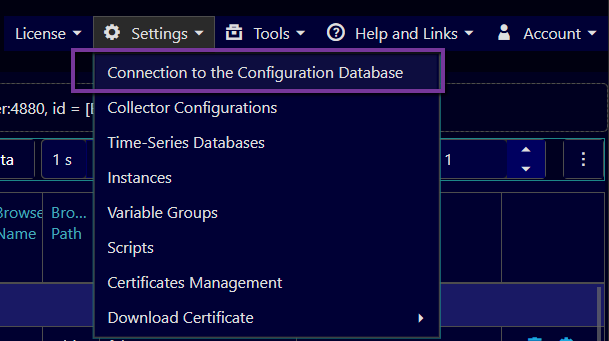
Open menu Settings/Connection to the Configuration Database (on the top right corner of the configuration web page):
In the opened dialog window select type of the database (SQLite or PostgreSQL) and other required settings.
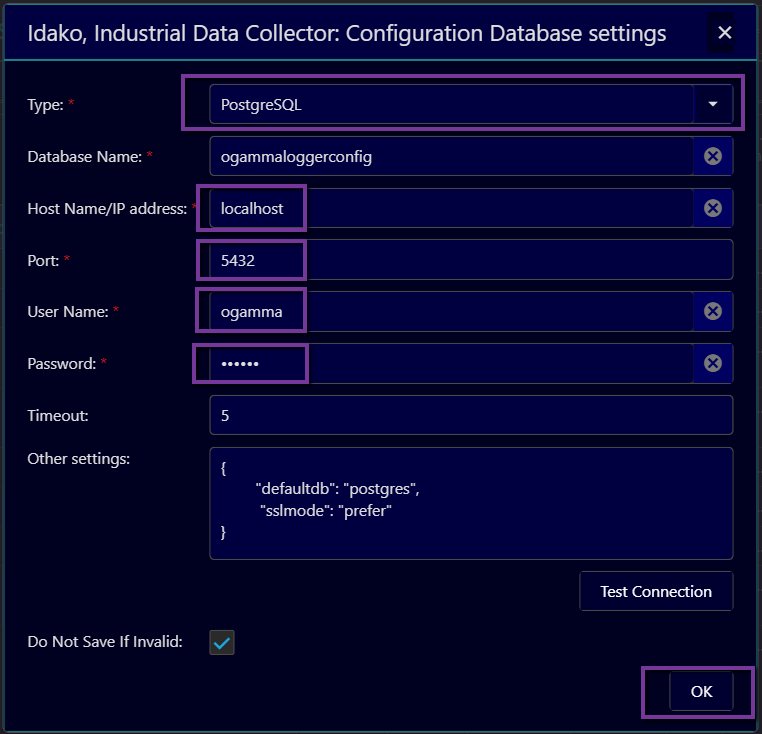
For database type SQLite the only required field to enter is path to the database file.
For database type PostgreSQL there are more fields to enter, most of them self-explaining.
In the JSON formatted field Other settings couple more settings can be configured:
defaultdb- sets what database should be used at initial connection to the PostgreSQL server. Note that at the initial connection process the configuration database does not exist yet, it is created after establishing a connection. If standard databasepostgresdoes not exist in your specific setup, or the user has no access to it, you might need to change it.sslmode- determines security mode of the connection to the PostgreSQL server. Default value isprefer: if possible, secured mode is used, otherwise non-secured connection is allowed. Full description of possible values and their meaning is described in this table: https://www.postgresql.org/docs/current/libpq-ssl.html#LIBPQ-SSL-SSLMODE-STATEMENTS
{
  "defaultdb": "postgres",
  "sslmode": "prefer"
}
Tip
If attempt to connect to the PostgreSQL database fails with error FATAL: database "postgres" does not exist, set name of the existing database in the defaultdb option.
You can verify if settings are correct by clicking on the button TestConnection. In case if database is not ready yet to accept connections, but connection settings are already known, then they can be saved even if attempt to connect fails, by un-checking of the flag Do Not Save If Invalid.
Tip
After changing of the configuration database, go through commands Collector Configurations, Time-Series Databases, making sure thay have desired records, and make sure that the current instance is assigned correct Collector Configuration and TSDB Configuration fields (via menu Instances).
2. User authentication and authorization.
In order to access configuration GUI, user authentication and authorization is required.
Industrial Data Collector supports 2 options to authenticate users: built-in and JWT-based.
Built-in identity provider
Built-in identity provider stores user accounts in the configuration database. This means that the application should be able to connect to the configuration database for user authentication to work.
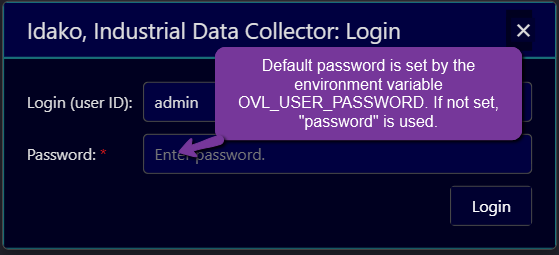
When the configuration database is empty (which is the case at the very first start time, as well as when the configuration database is switched to the new database), default user name and password are used for initial login. After very first login, the password is forcebly changed.
If later configuration database is changed to another one, existing sessions are closed, and users will need to login again using user accounts stored in that database. If the configuration database was not existing before and just created, again, default creadentials are used for the first time login.
When configuration GUI is opened from web-browser, Login dialog windows pops up:
Built-in identity provider supports following features:
Passwords are not stored in the database, instead, secure algorithm based on hashing is used to validate user credentials.
Note
To protect passwords during transfer from web browser to the backend, in production environment use secure
httpsprotocol. Setting up https is described in section How to setup configuration GUI endpoint to use https.User accounts can be managed via menu
Account/User Accounts. Opened dialog window displays list of current users, and allows to add, edit or delete user accounts. Default user accountadmincannot be deleted.User Account records have the following fields:
Login (User Id)- uniqie identifier;Full Name- descriptive name of the user;Role: defines what actions the user can be perform:admin- full access to all configuration settings, including managing of User Accounts;readWrite- full access to all configuration settings, excluding managing of User Accounts;readOnly- read only access to all configuration settings, excluding managing of User Accounts;
Active- boolean flag, if ckecked (true), user account is active (enabled), otherwise - disabled.
Typical user management workflow is described below:
The administrator creates new user via menu
Account/User Accounts, assigning temporary password, and then provides Login and password to the user;The new user logs in to the application, and then changes his password using menu
Account/Change password.While the page is open in the browser, the session stays active as long as there is data transfer between browser and the application.
The session becomes un-authenticated after closing of the page, or Logout, or after in-activity longer than 15 minutes.
Note that automatic refreshing of real-time data values is counted as session activity too.
If administrator deletes user account or turns off its
Activefield, current session of the user immediately becomes expired, and he cannot access configuration settings anymore.If configuration GUI is opened from more than one window or tab page in the browser, each will maintan separate session.
2.2. Authentication with JWT tokens
In version 4.0.0 new feature to support Single Sign On (further below referred as SSO) was introduced. While support for built-in user authentication/authorization described in section 2.1 is still available, it is also possible to utilize JWT access token passed in the headers of http requests sent from frontend (browser) to the backend (configuration endpoint of the application). Note that currently the frontend does not support obtaining of a JWT token, it requires integration with oauth2 proxy service to obtain and pass this JWT token in http request headers.
Note
The application was tested with open-source oauth2 proxy which is available here: https://github.com/oauth2-proxy/oauth2-proxy It was running integrated with popular web reverse proxy nginx: https://nginx.org/ and open-source user identity provider keycloak: https://www.keycloak.org/ All these 3 components are well maintained, supported, funded open source projects ready to be used in enterprise level production environment.
Support for authentication with JWT tokens without proxies is in the roadmap.
You can get more information about JWT (Java Web Tokens) at this web site: https://jwt.io/ It also provides online tool to parse JWT value and views it in human readable JSON format, so you can see there such fields as user name, roles assigned to him/her, etc.
User Authentication Variables
The way how the users are authenticated and authorized is controlled by a few environment variables:
OVL_AUTH_TYPE- defines user authentication flow. Possible values are:BUILTIN- only built-in user authenticaiton/authorization method is used (see the section Built-in identity provider).JWT- http requests must have JWT token in a specific header, name of which is defined by another optionOVL_JWT_HEADER(see below). The GUI cannot be accessed using built-in authentication even if the header is missing.JWT_BUILTIN- if http request has a header with JWT token, then it is used for authentication. If there is no such header, then built-in user authentication is used. This is default value of the variableOVL_AUTH_TYPE.
OVL_JWT_HEADER- name of the http header in which JWT token is expected to be passed in http requests. Default value isX-Access-Token.OVL_JWT_ROLES_PATH- path in the JWT for a JSON node with list of roles assigned to the user. Default value isrealm_access/roles. This is the default path used in the user identity provider solutionkeycloak. To authorize the user to access application’s configuration GUI endpoint, the list of roles should contain one or more roles with names, defined by the following below environment variables. These roles should be created and assigned in the User Identity Provider (keycloak):OVL_JWT_ROLE_MAP_ADMIN- administrator role. Default value isovl-admin. Equivalent to the built-in roleadmin.OVL_JWT_ROLE_MAP_WRITE- role to change configuration settings. Default value isovl-write. Equivalent to the built-in rolereadWrite.OVL_JWT_ROLE_MAP_READ- role to read configuration settings, default value isovl-read. Equivalent to the built-in rolereadOnly.
OVL_JWT_VERIFY- flag, defines, should the JWT token be verified. Applicable when JWT token is used for authentication. Possible values are:0- verification is disabled. Can be used when authentication proxy guarantees that only verified JWT tokens are passed and tokens are guaranteed to be deliviered to the application without tampering.1- verification is enabled (default value). In this case, couple of more settings should be configured, to provide public key required to validate signature passed in the JWT.OVL_JWT_KEY_URL- URL to the public key used to verify the token. Possible values are:iss- value of theissclaim in the JWT token is used as a URL to get the public key.value which can be interpreted as a valid http URL (starts by
http) - this address is used to download the public key byGEThttp request call.otherwise - treated as a path to the file where the public key is stored in PEM format.
Default value is
iss.
Docker compose file examples to configure Industrial Data Collector, reverse proxy nginx, oauth2 proxy and keycloak services can be found at this GitHub repository: https://github.com/onewayautomation/obox-suite.
For detailed and up-to-date information please contact Support.
3. Collector Configurations.
Collector Configurations define set of settings on what OPC UA Servers to connect to, and what variables to log data for and how often (i.e. sampling interval etc.).
Industrial Data Collector is designed keeping in mind to support for features such as high availability, redundancy and scalability. When multiple instances use the same Configuration Database, it is possible to view and use the same settings from multiple instances and assign them to one or more specific instances. This allows implementation of various use cases:
When Industrial Data Collector runs as a High Availability cluster node, all nodes use the same Collector Configuration and forward data to the same time-series database, but only active node actually connects to OPC UA Servers and collects data.
If you would like to collect data for the same variables and forward it to different destinations, then you can configure multiple instances that use the same Collector Configuration but each uses different destination to forward data.
If you would like to forward data to the same destination TSDB from multiple instances that collect data from different servers, then you can assign each instance own Collector Configuration, and the same time-series database record.
You can create multiple Collector Configurations and easily switch using them at runtime for debugging and testing purposes.
Collector Configurations table currently has just name attribute. List of Collector Configurations is available to edit via menu Settings/Collector Configurations.
The list of servers in the Address Space panel and list of variables in the Logged Variables table are defined in the scope of the Collector Configuration that is assigned to the instance of the application in the Instance Settings dialog window (opened via Settings / Instances menu). When you select different record in the Collector Configuration field of the Instance settings dialog window and apply the changes, content in the Address Space panel and Logged Variables table is changed, and the instances disconnect from servers that were configured for the previous Collector Configuration, and connects to the servers listed in the new Collector Configuration and subscribes to variables from updated Logged Variables table.
For details on how to configure connections to OPC UA Servers and define set of variables to collect data for, please refer to the section Collect.
4. Time-Series database connection settings.
Time-series database is where data values received from OPC UA Servers are forwarded to. It can be either PostgreSQL/TimescaleDB, or InfluxDB, or Apache Kafka / Confluent / Redpanda, or MS SQL Server, or MySQL, or SQLite, or Snowflake, or MQTT Broker.
It is possible to create multiple records of connection settings. Then assign one of them to the specific instance of the application to start forwarding data to it.
List of time-series database connection settings is available to edit via menu Settings/Time-Series Databases.
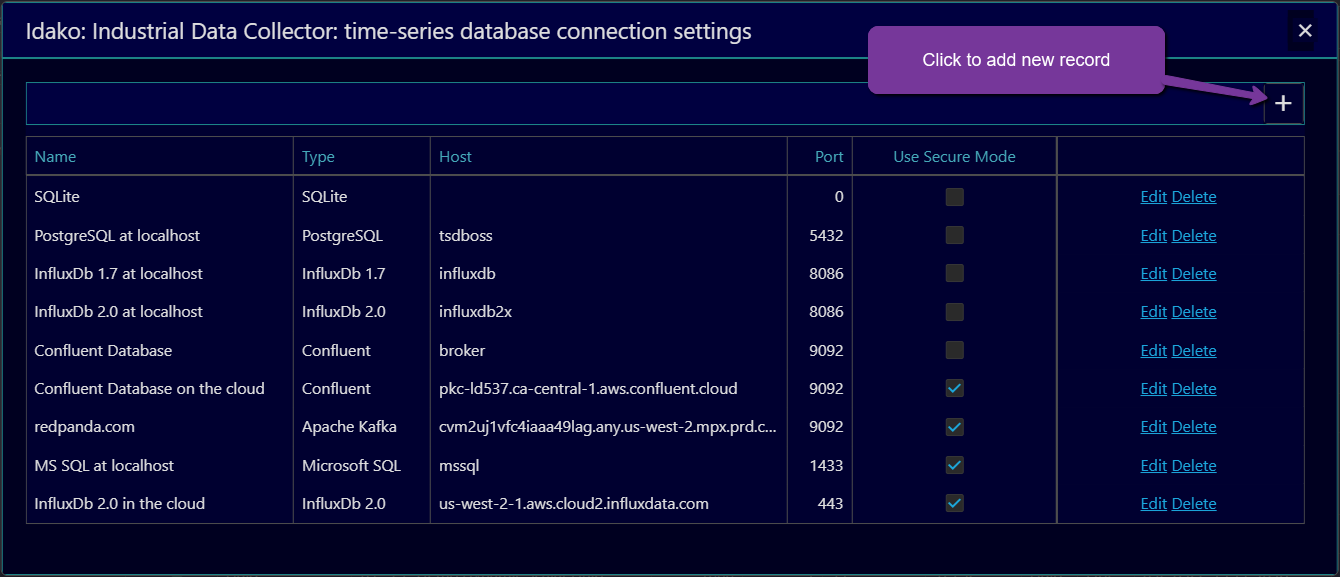
Click on the plus icon at the top right corner. Dialog window Time-series database configuration settings will be opened.
First, select type of desired database:
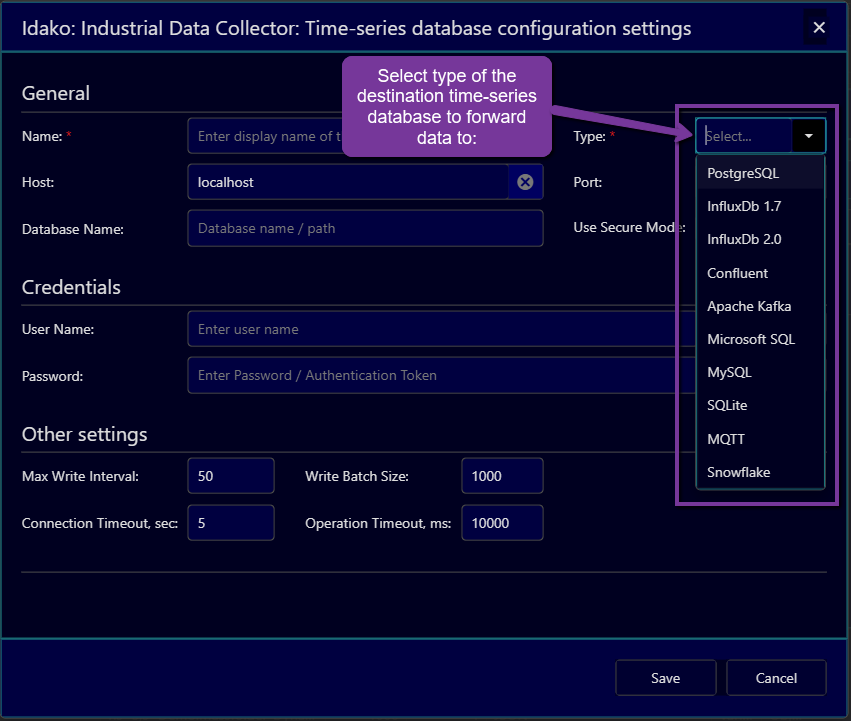
Then fill the fields with settings required to establish connection to the destination database, and fields that define how OPC UA variable and server attributes are mapped to the data model in the destination database.
To verify that settings are correct click on Test Connection button (scroll to the buttom of the form if it is not visible). After that settings can be saved.
Time-series database settings are described in details the section Time-Series Databases.
5. Configuration of the application instance.
Once Collector Configuration record is created and required time-series database configurations are created, one of each need to be assigned to the application instance.
Open Application instances dialog window by menu Settings/Instances. In the table there will be record for each instance using the same configuration database. The instance which the browser is connected to has home icon.
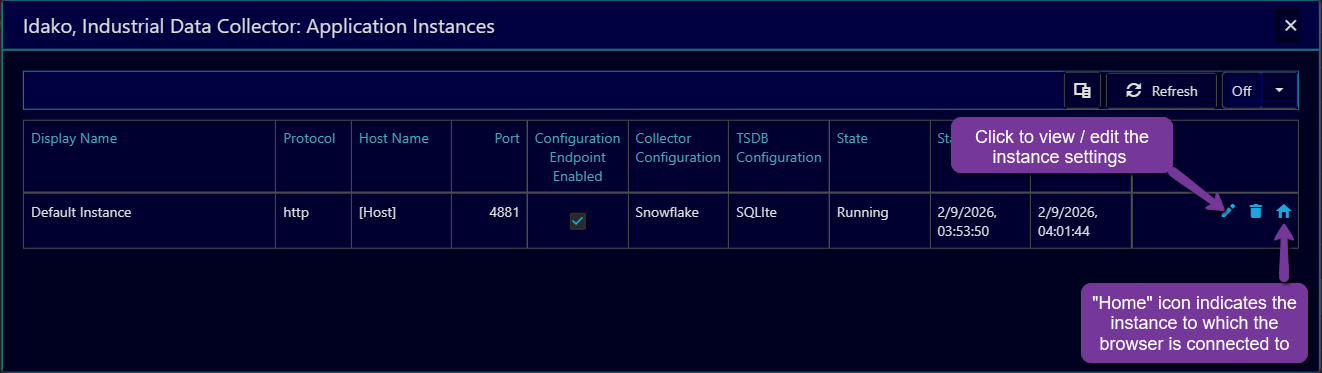
Click on Edit icon to view and edit settings. In the opened dialog window assign Coolector Configuration and Time-Series Database to the Instance.
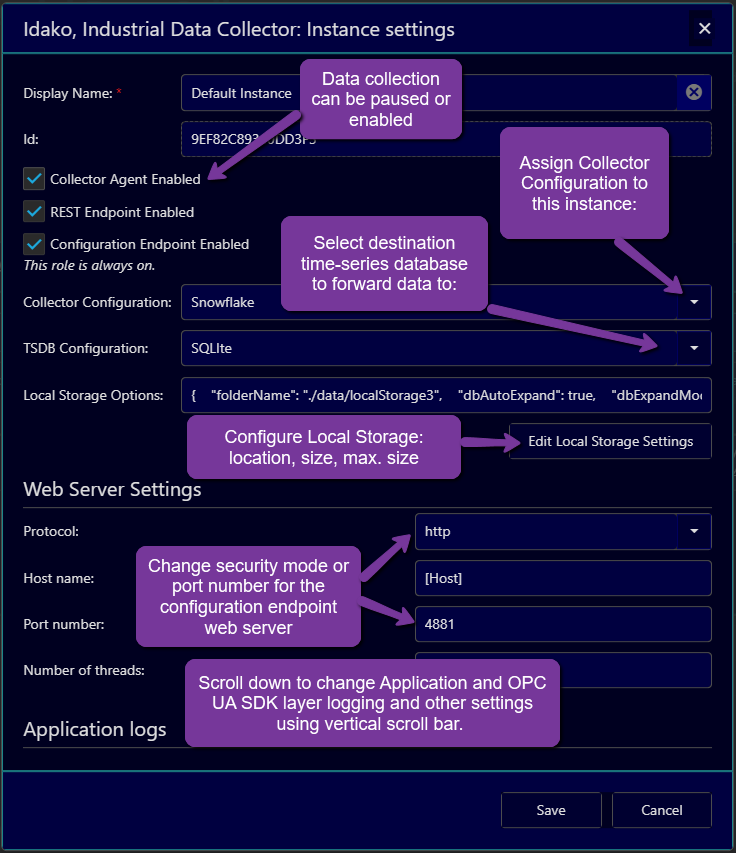
When mouse hovers over right side of the dialog window, scrool bar appears. Using it, scrool down to view the rest of settings.
Particularly, you can change how the OPC UA Application certificate is generated. By default, it is signed by the self-signed root CA certificate, which is generated by the application. In order to configure OPC UA Servers to accept it, the CA certificate and its revocation list should be passed to the server. They can be downloaded via menu Settings / Download Certificate. Some servers might have problems with uploading these files. For that reason, the OPC UA application certificate can be geberated as self-signed, by turning on the field Generate self-signed OPC UA Application Instance Certificate.
When Save button is clicked, changes are saved and most of them applied without restart. Change of the Local Storage location, log files location, numbers of threads require restart of the application to apply. Enabling or disabling of the Collector Agent, change of the Collector and TSDB configuration, changes of log levels are applied without restart.
6. Configuration of the instances as High Availability Cluster Nodes.
To run in High Avialbility mode, two separate instances of the application need to be installed. As of version 4.2.1 they both need independent licenses. In the future they might share the same license key. For now, for discounted licenses for the secondary node please contact Support.
Another requirement is to install and run High Availability Node Manager service in both instances. If Windows installer is used to deploy the application, High Availability Node Manager can be installed as Windows service if this component is selected.
High Availability Node Manager is a sinlge executable file application, named ha_node.exe in Windows and ha_node in Linux. It is included in the distribution package. All configuration settings to it are passed via environment variables:
Settings to connect to the PostgreSQL database used as a heartbeat messages exchange media:
HA_DB_HOSTNAME: host name or IP address where the database is runningHA_DB_PORT: port numberHA_DB_USER: user nameHA_DB_PASSWORD: password. Node that in the currnet version it is stored as plain text. In the future wil lbe stored in encrypted format.HA_DB_NAME: database nameHA_DB_TABLENAME: name of the table wehere heartbeat records arw written.
Other settings:
HA_CLUSTER_ID: identifier of the cluster.HA_NODE_ID: identifier of a node , unique witht scope of a cluster.HA_PRIORITY: integer number. The node with highest priority number becomes active is more than one node is operating in normal mode.HA_HEARTBET_INTERVAL: interval of sending heartbeats. Default value is 1000 ms.HA_TIMEOUT_INTERVAL: timeout after which not updating of the heartbeat record for this node is considered as failure of the node and the standby node takes over and becomes active. Default value is 3000 ms.HA_HEALTH_CHECK_URL: url to check application health. For Industrial Data Collector default value is http://localhost:4880/health .HA_MAX_HEALTH_CHECK_FAILURES: maximum number failed calls to the HA_HEALTH_CHECK_URL after which the applicatoi is considered as not running and other nodes takes over. Default value is 3.HA_HEALTH_CHECK_INTERVAL: interval checking of application health. Default value is 3000.
In Windows essential settings are available to change in the installation wizard. For Linux as well as for Windows portable installatins they should be set in environment variables before starting of the application executable.
Interprocess communication between Industrial Data Collector and the High Availability Node Manager service is done via filesystem. Therefore they both must run in the same work directory. When Windows installer it used to deploy them, it is done automatically.
Next requirement to run as High availability Cluster node is that the instances should use the same PostgreSQL database as configuration database, to facilitate sharing of the configurations. Choice of configuratio database is done using the menu command Settings / Connection to the Configuration Database. As a result, multiple instances of the application can share the same Collector Configuration and TSDB configuration settings.
Note that the PostgreSQL database in turn should also run in High Availability mode. How to setup it in this mode is outside of this document scope.
Configuration of the first instance (connections to OPC UA Servers and selection of variables to log, and settings to connect to the TSDB) can be done as for the regular instance.
To make the second instance as a cluster member node, all you need is to configure its Instance settings to use the same values in the Collector Configuration and TSDB Configuration fields. Both instances should have the option Collector Agent Enabled checked. When running in a cluster, only Active node will be collecting data although both have the option Collector Agent Enabled checked. The node which is in the Standby mode will not collect data, like when it runs in stand-alone mode with the configuration option Instance settings / Collector Agent Enabled is turned off.
The current mode of the instance (Active or Standby), as well as the cluster id and node id are displayed in the Statistics dialog window, as well as in the header of the configuration GUI.
To troubleshoot High Avialability feature issues, log files are written in the folder ./data/ha-logs, as well as messages in the application console are logged.
For more detailed information about the feature and for support please contact Support.